

Note: The template is based on the script attached to this article. Download it and replace the one located in the script folder in the program directory with this one. This ensures that the script matches the template.
Get script: Leverandør_mal.zscript
Receive the file from the supplier in Excel.
Arrange the file in Excel so that the columns match the example below. The amount MUST either be provided as Debit and Credit amounts, or as a single Amount column. The date must also be formatted as shown below: DD.MM.YYYY.
Once the sheet has been arranged, save the file as CSV (semicolon-delimited) (*.csv).
(Note! After saving, close the file in Excel so it is not left open.)

Prepare Control for importing the supplier file:
From the main window, select Import, then New Import…
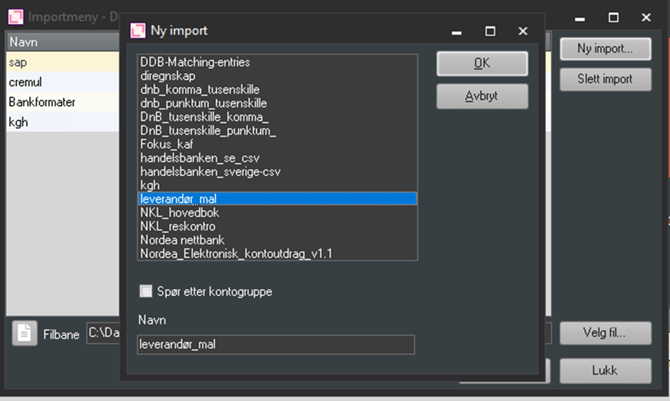
Browse the list and select the file leverandør_mal_felles, then click OK.
To import the account statement, select leverandør…, and choose File (browse to where you saved the sheet).
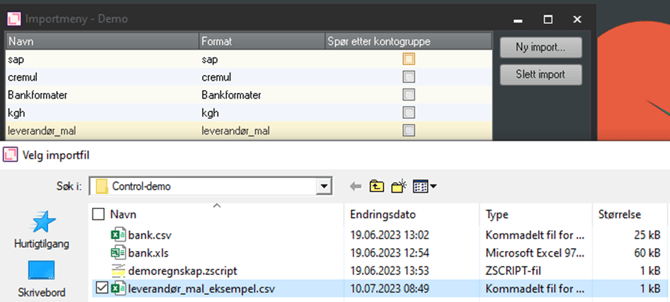
Select Start to read.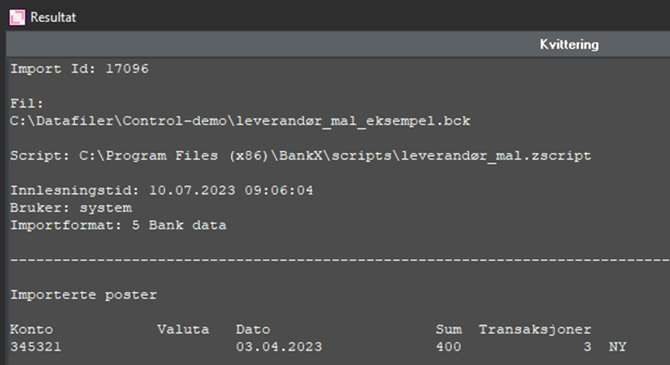
Thereafter, the account is linked in the usual way via the account wizard - with the supplier sub-ledger from the general ledger on the left side and the supplier account statement on the right side.