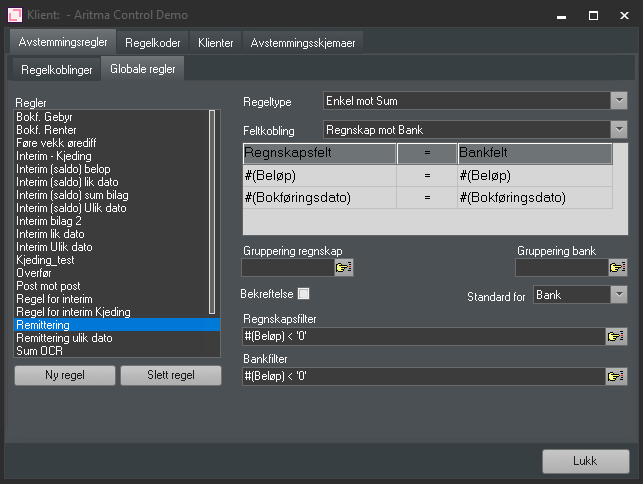
A set of reconciliation rules is delivered with the system, and will automatically be linked to the accounts you configure. If you want to set up your own reconciliation rules, this can be done from the Setup | Clients menu, Reconciliation Rules
Click on the Reconciliation Rules tab and then on Global Rules. The list of rules on the left side shows all rules that have been created in the system and that can be linked to the various account groups.
Reconciliation Rules
A set of reconciliation rules is delivered with the system, and will automatically be linked to the accounts you configure. If you want to set up your own reconciliation rules, this can be done from the Setup | Clients menu
Click on the Reconciliation Rules tab and then on Global Rules. The list of rules on the left side shows all rules that have been created in the system and that can be linked to the various account groups.
Click on the Rule Connections tab. The list on the left shows your account groups. By selecting an account group, you will under "Linked rules" on the right side see which rules are linked to this.
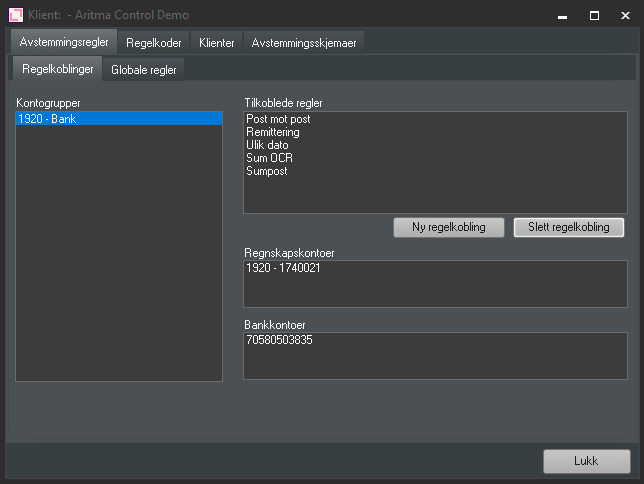
Click on "new rule linkage" to connect a new rule to your account group. Double-click or select the desired rule you want to connect to and press Enter.
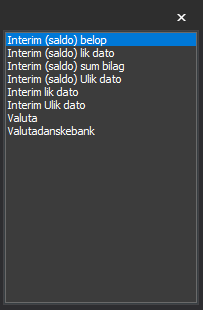
The rule has now been linked. If you want to change the order in which the rules are executed, select the rule, hold down the CTRL key, and move the rule using the up/down arrow keys on the keyboard.
Rule codes
Rule codes are used if you want to automatically reconcile postings with differences.
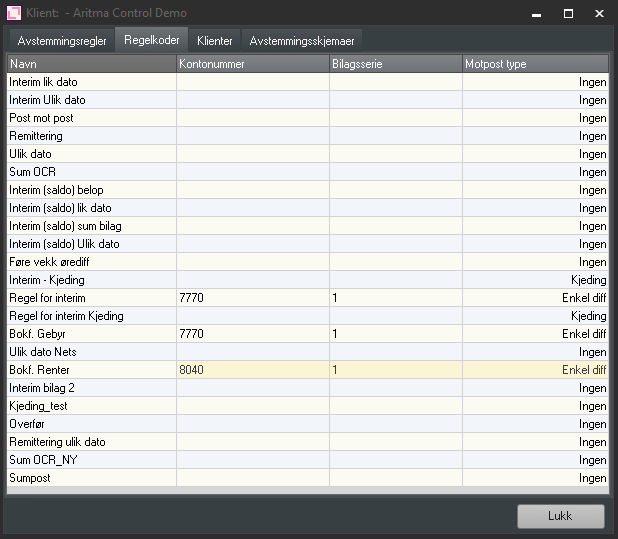
Click on the tab "regelkoder" (rule codes) to see an overview of which rule codes have been used on the different rules.
There are three different codes / counter entry types that can be used:
-
Ingen / None – No correction entry will be created during automatic reconciliation. This is the default for all rules. If you do not want to reconcile with differences, the counter entry type should be ingen / none.
-
Enkel diff / Single difference – When reconciling with differences, each reconciliation will create a correction entry.
-
Sum diff / Total difference – When the reconciliation is finished, the system will create one correction entry for the sum of all differences.
In the field kontonummer / account number, you specify which account you want to post the difference to. Leave this empty when the counter entry type is ingen / none.
In the field bilagsserie / voucher series, you specify which voucher series the difference should be posted on. Leave this empty when the counter entry type is ingen / none.
Create a new reconciliation rule
If you need to set up additional rules beyond those included in the program by default, this is done on the tab "globale regler" (global rules).
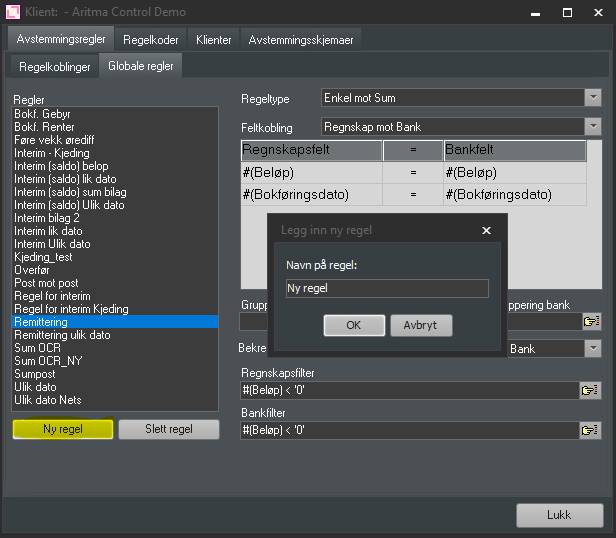
- Klikk på ny regel
- Gi regelen et passende navn
- Du har nå opprettet en tom regel. For å sette opp denne, må du markere regelen, og fylle ut feltene på høyre side av vinduet
Regeltype
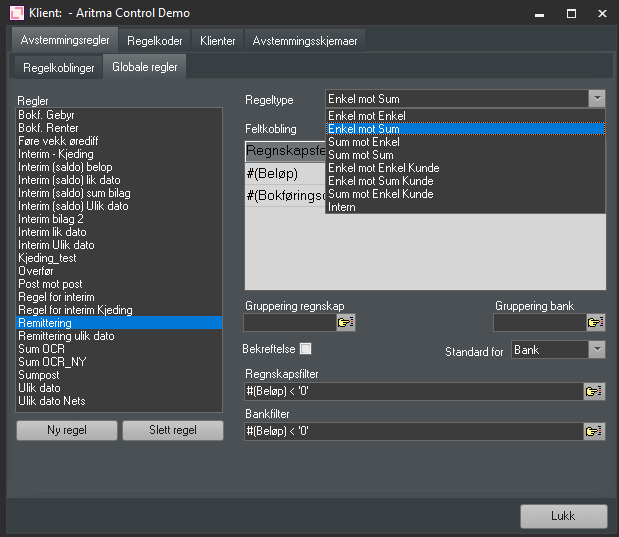
Vi har flere regeltyper å velge imellom
- Enkel mot Enkel – regelen vil forsøke å avstemme en enkelt post på regnskapssiden mot en enkelt post på banksiden
- Enken mot Sum – regelen vil forsøke å avstemme en enkelt post på regnskapssiden mot en eller flere poster på banksiden. Feltet "Gruppering bank" bør fylles ut
- Sum mot Enkel – regelen vil forsøke å avstemme en eller flere poster på regnskapssiden med en enkelt post på banksiden. Feltet "Gruppering regnskap" bør fylles ut
- Sum mot Sum – regelen vil forsøke å avstemme en eller flere poster på regnskapssiden mot en eller flere poster på banksiden. Feltene "Gruppering regnskap" og "Gruppering bank" bør fylles ut
OBS! Reglene Enkel mot Enkel Kunde, Enkel mot Sum Kunde og Sum mot Enkel Kunde blir ikke brukt for bankavstemming!
Field Mapping
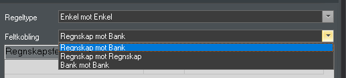
We can set up three types of field mappings:
-
Regnskap mot bank / Accounting vs Bank – Will reconcile posting(s) on the accounting side against posting(s) on the bank side. This means the amounts to be reconciled must be equal.
-
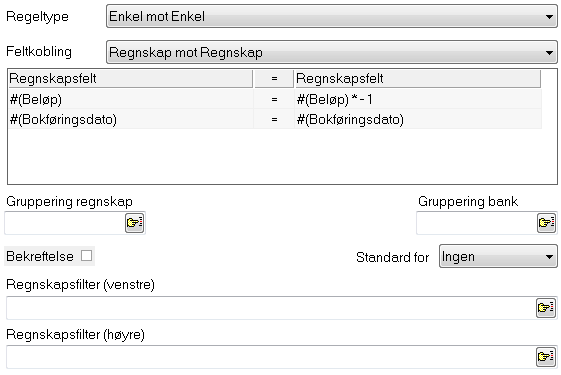
Regnskap mot regnskap / Accounting vs Accounting – Will reconcile one or more postings on the left side against other postings on the left side. This means the amounts to be reconciled must have opposite signs so that the total becomes zero.
-
Bank mot bank / Bank vs Bank – Will reconcile one or more postings on the right side against other postings on the same side. This means the amounts to be reconciled must have opposite signs so that the total becomes zero.
 l
l
Feltrelasjoner
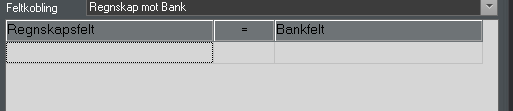
When the field mapping type is selected, you must configure which fields must be identical (or different) for a reconciliation to be performed. By clicking in a bank or accounting field and pressing Enter, you will
have to pull up the list of available fields.
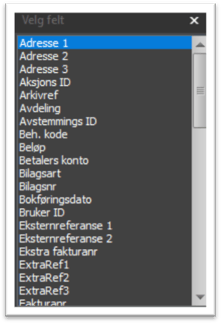
Usage:
- Double-click the field you wish to use
- You must select fields on both the accounting and bank sides
In the column "=", you must select the relationship between the fields:
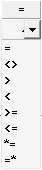
Field conditions
-
=feltene skal være like / fields must be equal -
<>feltene skal være ulike / fields must be different -
<feltet til høyre skal være mindre enn venstre felt / right field must be less than left field -
>feltet til høyre skal være større enn venstre felt / right field must be greater than left field -
>=feltet til høyre skal være mindre eller lik venstre felt / right field must be less than or equal to left field -
<=feltet til høyre skal være større eller lik venstre felt / right field must be greater than or equal to left field -
*=feltet til høyre inneholder feltet til venstre / right field contains the left field -
=*feltet til høyre eksisterer i feltet til venstre / right field exists in the left field
To add more fields for the rule to check, press the down arrow on the keyboard when the accounting or bank field is in focus.
Date and amount deviation – $(DateDeviation) and $(AmountDeviation)
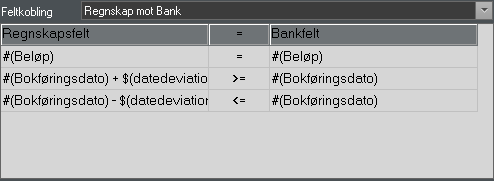
In automatic reconciliation, you can set values for date deviation and amount deviation. If your rule is to make use of these values, you must include $(DateDeviation) or $(AmountDeviation) in the rule.
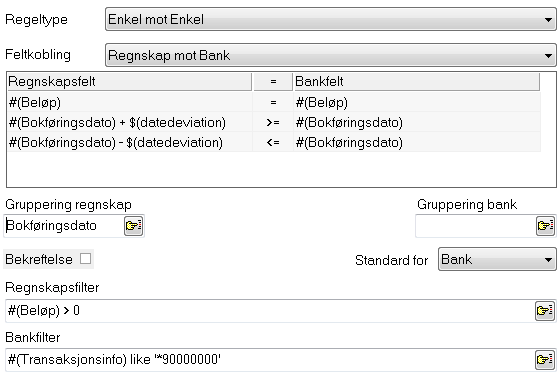
The figure below shows a rule that takes into account the date deviation the user has entered. With a 3-day date deviation, it is possible to reconcile an accounting entry that is up to 3 days earlier or 3 days later than the date on the bank transaction.
Extracting data with Substring
It is possible to extract data from a field using substring.
Example:
SubString(#(Transaksjonsinfo),1,3)
In the example above, positions 1 to 3 are extracted.
Gruppering regnskap og bank / Grouping accounting and bank
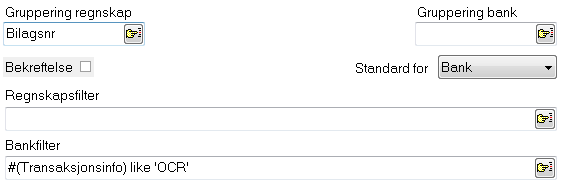
If a SUM rule type is used, a grouping field must be specified wherever SUM is applied.
For example: If you have a SUM mot ENKEL / SUM vs SINGLE rule and enter EnclosureNo (bilagsnummer / voucher number) in the field Gruppering regnskap / Grouping accounting, the rule will attempt to reconcile all postings with the same voucher number in accounting against a single posting in the bank (the postings must of course also meet the other criteria of the rule).
Multiple fields can be used for grouping.
Confirmation
Confirmation means that the entries are not set to Reconciled, but to "Pending approval". To have them reconciled, you must select "Pending approval" in the Open Entries window, and then confirm them as Approved. Only then is the status set to Reconciled.
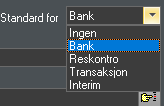
Default for…
In the "Default for" box, you can choose that a rule should be automatically applied to new account groups. If you want, for example, a rule to be the default for all bank reconciliation accounts, select Bank.
The same applies to other types of reconciliations.
Accounting and Bank Filters
With these filters, you can further limit which transactions the rule should attempt to reconcile. For example, only transactions with positive amounts, or transactions whose transaction information begins with OCR in the text.
By setting up filtering here, the rules will run faster and you will get entries that have been removed which can prevent the summation rules from triggering.

Rule Menu
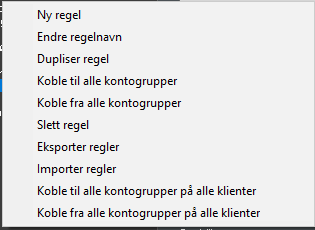 When you right-click a rule, a rule menu appears
New rule – creates an empty rule
Rename rule – lets you change the name of the rule
Duplicate rule – creates a copy of the rule
Attach to all account groups – applies the rule to all account groups
Unlink from all account groups – removes the rule from all account groups
Delete rule – deletes the rule
Export rules – lets you export one or more rules to an XML file
Import rules – lets you import an XML file with reconciliation rules
Examples of reconciliation rules
- The rule will reconcile all positive accounting entries on a given date against a single bank entry, which has a transaction reference equal to *90000000, provided that the date of the bank transaction is not more than 3 days apart from the accounting entries:
- The rule reconciles items on the accounting side with the same date and opposite amount (add a mark to the accounting field on the right side. The amount should be reconciled against the same amount, but with the opposite sign). This rule will, for example, reconcile a reversal in the accounts if it has been done on the same date: