1.
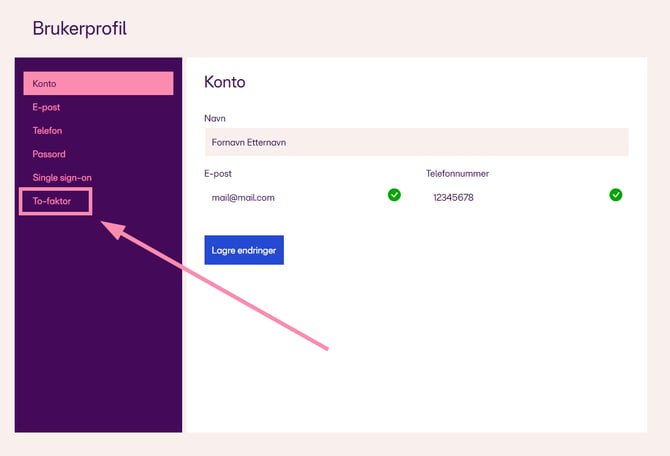
Click on your name in the top right corner and select “My profile.”
A new tab will open. Click on “Two-factor.”
2.
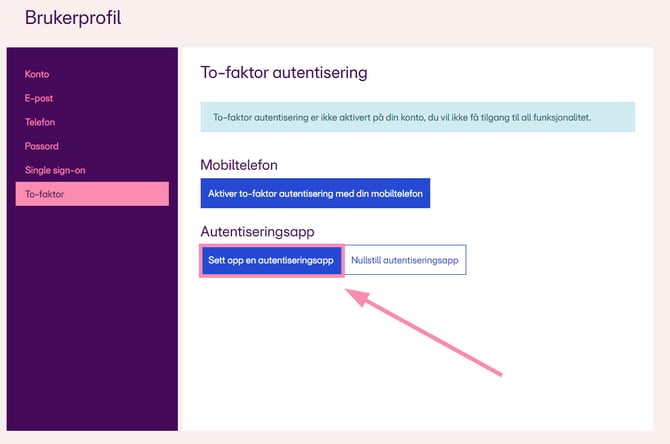
Select “Set up an authenticator app.”
3.
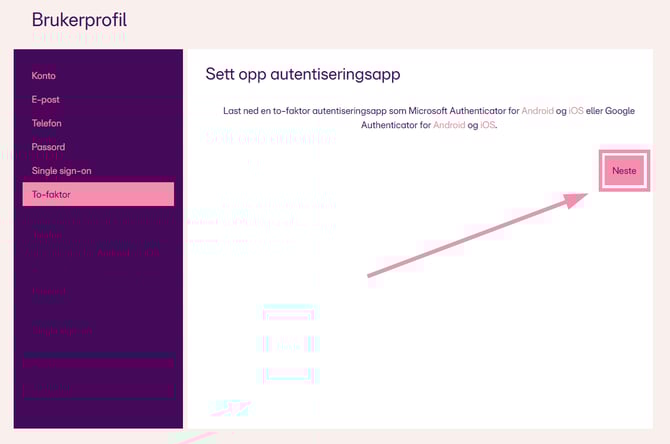
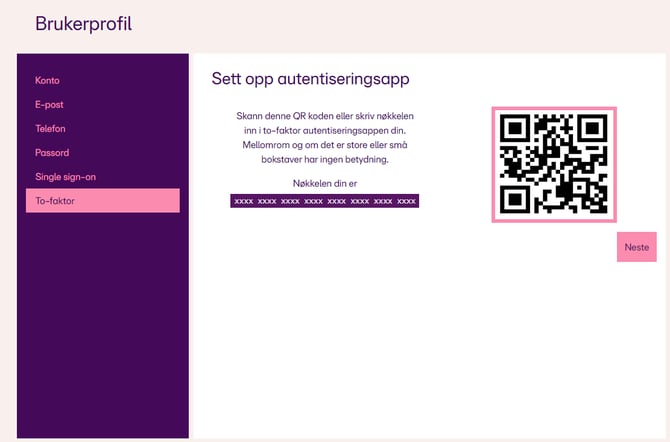
Click “Next.”
4.
You will now see a QR code displayed on your screen.
5.
Download and install an authenticator app. Below are guides for Microsoft Authenticator and Google Authenticator (other apps can also be used).
5.1 Microsoft Authenticator
-
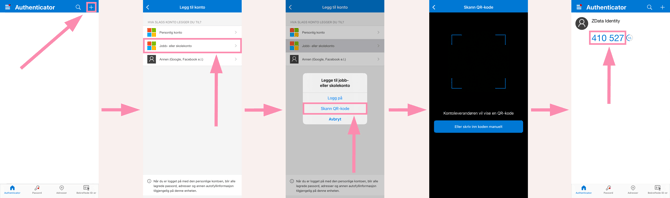
Open the app and tap + in the top right corner
-
Select account type (Recommended: Work or school account)
-
Scan the QR code shown on your screen (from step 4)
-
A code will be generated in the app, which you will use in the next step
5.2 Google Authenticator
-
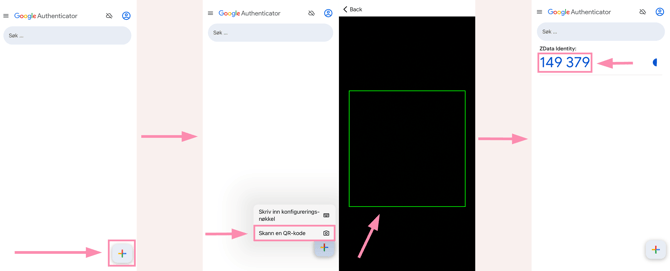
Open the app and tap + in the bottom right corner
-
Select “Scan a QR code” and scan the QR code shown on your screen (from step 4)
-
A code will be generated in the app, which you will use in the next step
6.
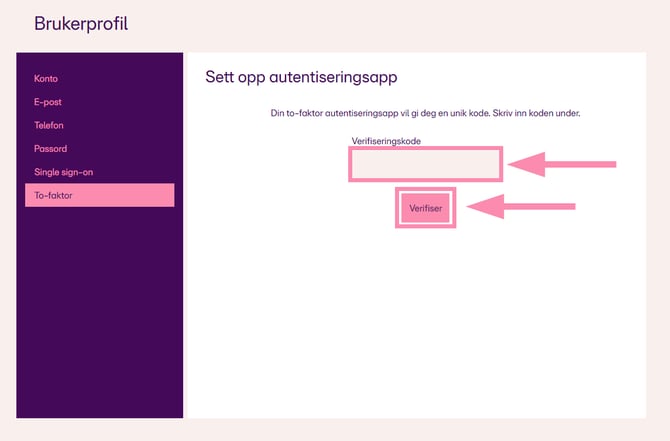
Click Next on the page from step 4.
Enter the code from your authenticator app, then click “Verify.”
7.
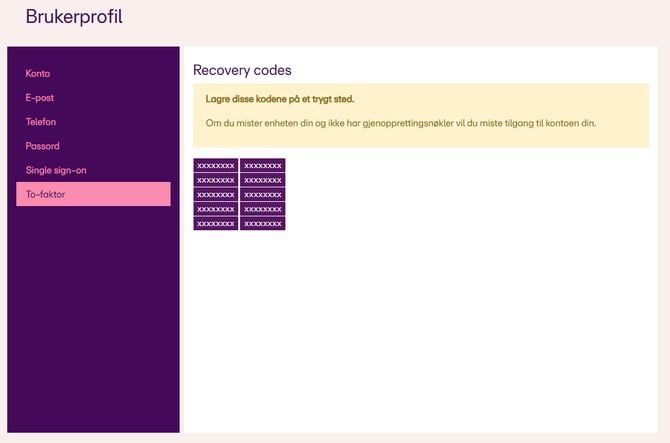
After verification, you will be shown recovery codes. Save these codes for future use if you lose access to your device.
If needed, Aritma can also help you restore access even if you lose your recovery codes.
You have now successfully set up two-factor authentication.