

In the report area, an overview of all reports created for the selected client is displayed. To go to the report area, press Reports in the side menu, and choose which client you want to work with.
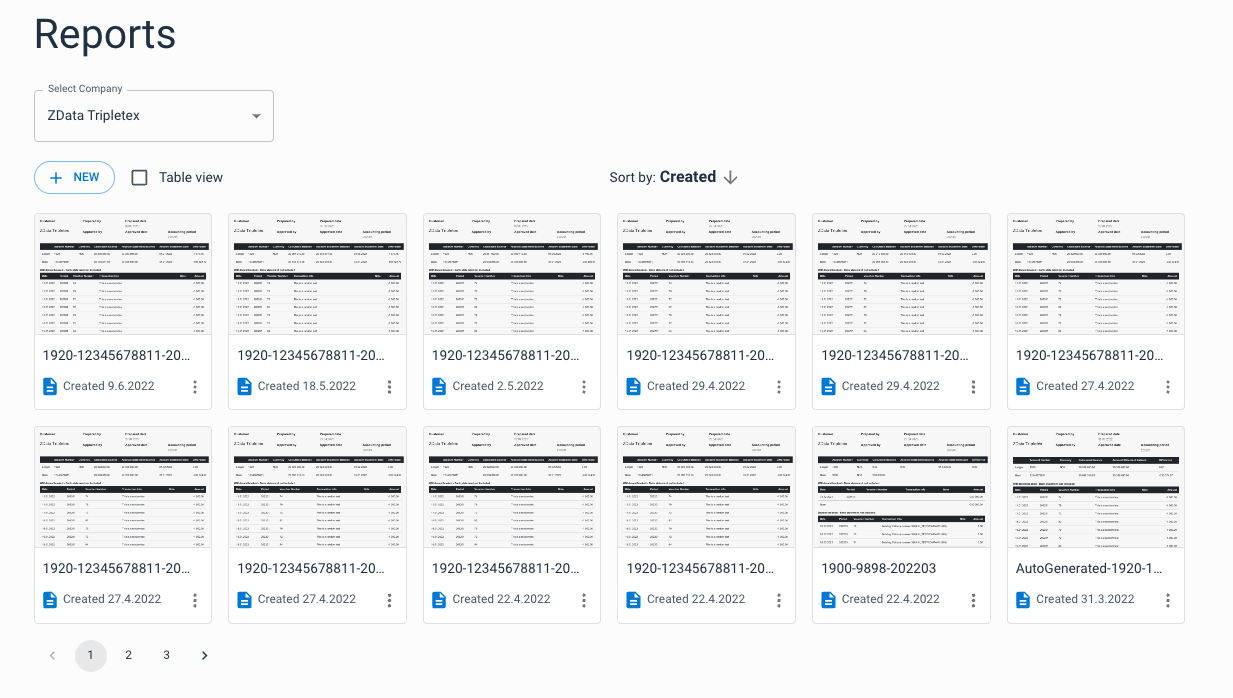
You can open a report in the browser by clicking on the tile. You can also download or delete the report by clicking on the three dots at the bottom right of the tile.
To create a new report without approval, simply click the "New" button under the client dropdown menu.
Appearance
The reports are in PDF format and come with a fairly standard appearance. The main function is to provide an overview of the balance per period, as well as open items.
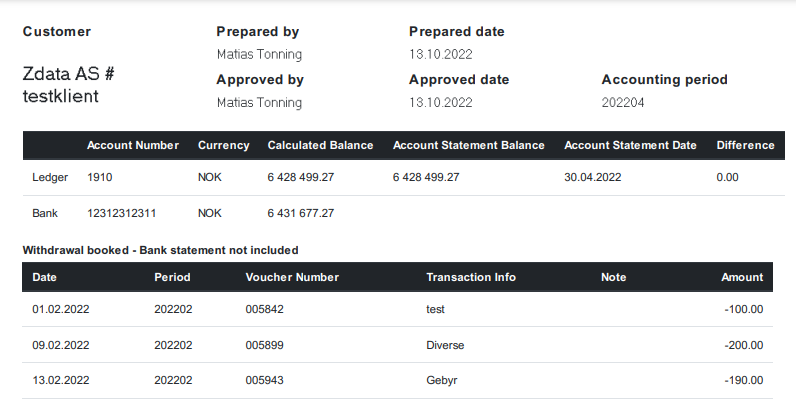
Why do reconciled items appear in the report?
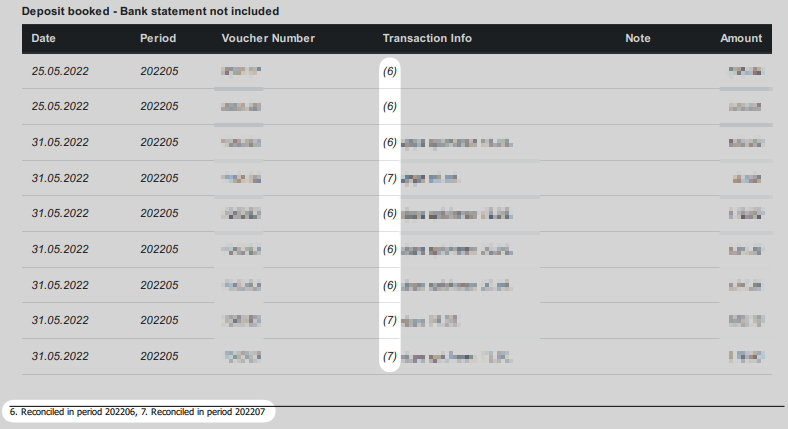
If you have reconciled items against a future period, technically those items are not considered reconciled in the current period. They are therefore visible in the report, but marked with the period in which they are actually reconciled under transaction information, with an explanatory note at the bottom of the document page.
Example
The image above shows a report for period 202205. The items have been reconciled against items belonging to period 202206 and 202207, and are therefore not considered reconciled as of 202205. If the customer generates a report for period 202206, the items marked with (6) will disappear. The same applies to the (7) items for period 202207.
In practical terms, items marked with a future period can be ignored, unless it is not intended that the contra-entry lies in a future period. Then it must be corrected in the manual reconciliation.