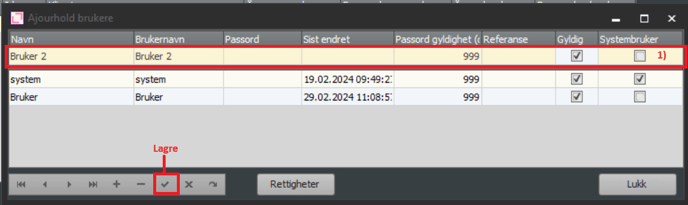
When you are logged into Aritma Control as a system user, you have the ability to manage users.
For companies with many clients, it may be appropriate for users to have access only to the clients they work with. If a user cannot find an account group they should work with, they may lack permissions for that account group. The system user can then change this.
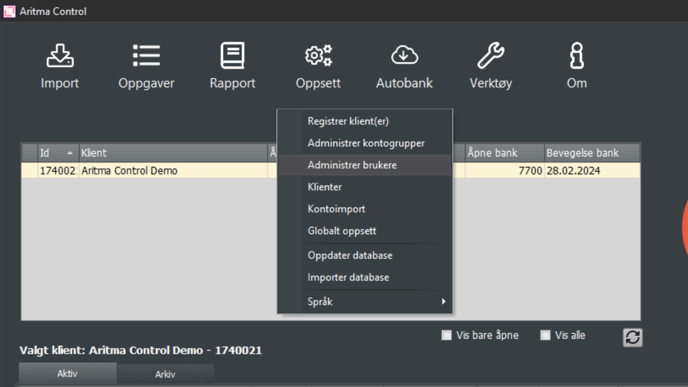
Go to Settings -> Manage users
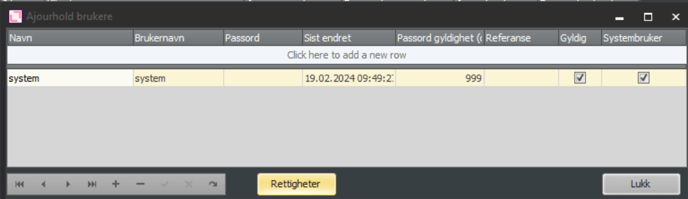
You can change the permissions for the different users by clicking on "Permissions".
You will then see the overview illustrated in the image below. Select the user you want to manage from the dropdown list at the top. Check the boxes for the clients the user should have rights to in the pane on the left. Then check the account groups the user should have access to in the pane on the right.
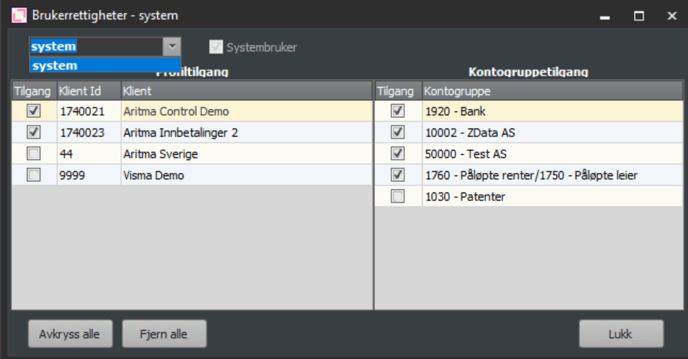
The system user has access to all clients.
Override user permissions
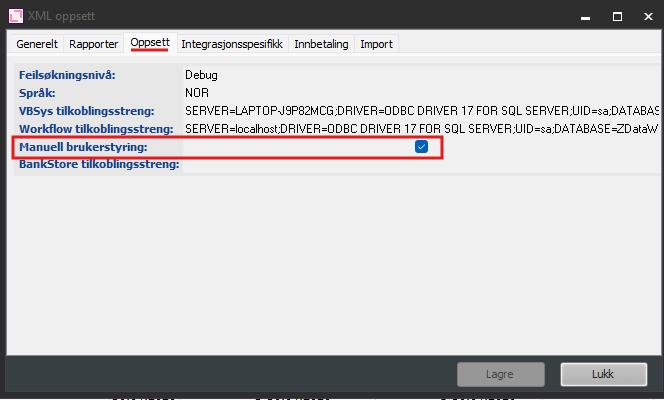
In Aritma Control for Visma Business, a user's permissions are determined by the rights the user has in Visma Business. That means that different users will see the same clients in Control as in their client list in Visma. If you want to override this, go to Settings -> Global Settings -> Settings. Then enable the "Manual user management" checkbox. You will then be able to manage the permissions in the same way as described above.
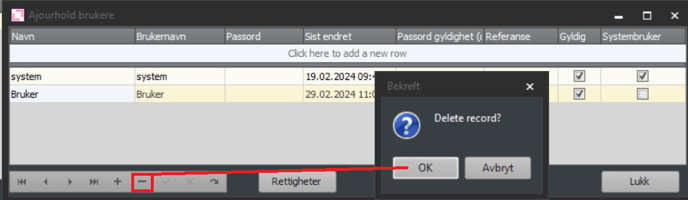
Slette bruker
Du kan slette en bruker ved å markere den og så trykke på minusikonet nede til venstre.
Opprette ny bruker
Du kan opprette en ny bruker ved å trykke på plussikonet nede til venstre. Da vil det komme en ny linje du kan fylle inn informasjon i (Se rute 1)). Her skriver du inn Navn, Brukernavn (merk i Aritma Control for Visma Business må brukernavnet i Aritma Control være likt brukernavnet i Visma Business). Passord er valgfritt, og dere velger gyldighet for passordet her. Huk av for Gyldig. Dersom den nye brukeren skal være systembruker med alle tilganger huker du av dette her. Husk til slutt å lagre endringene ved å trykke på V-haken nede til venstre.