

The program is usually installed on an APP server.
Right-click on "ZData Workflow Installer.exe", which you can find via the Partner Portal, and select "Run as administrator".
-
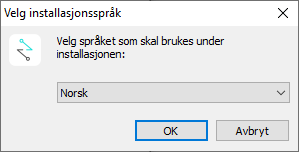
Select the language and click OK.
-
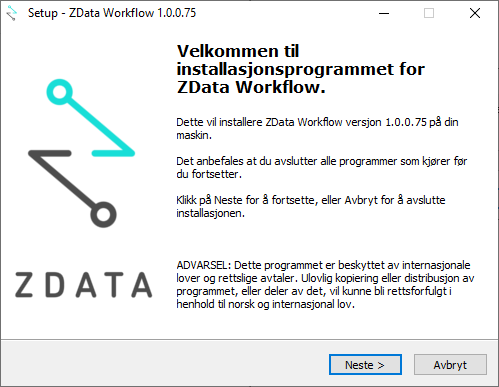
Click Next.
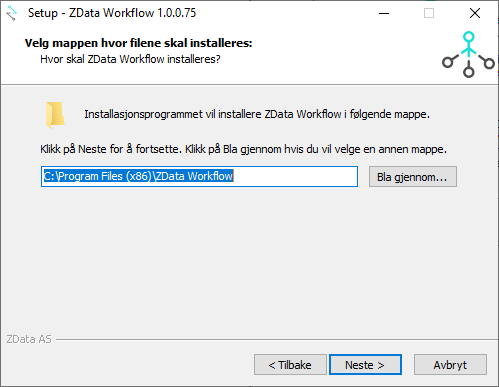
The program is usually installed on C:\ on an APP server.
Click Next.
-
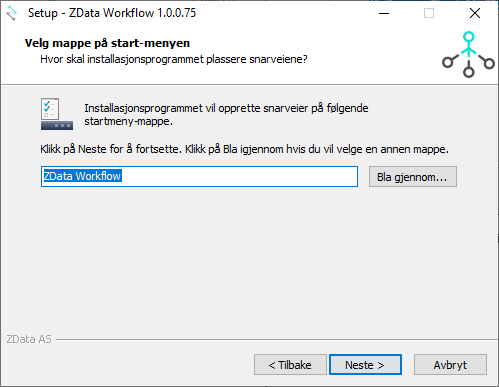
Click Next again.
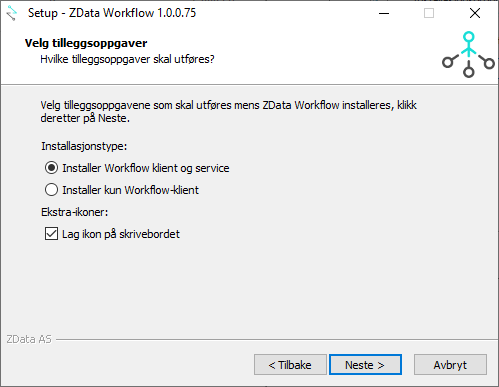
-
Select Install Workflow client and service.
-
Check Create desktop icon if desired.
Click Next.
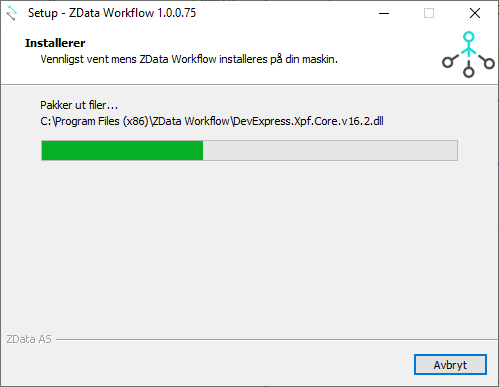
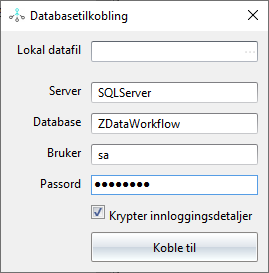
-
Enter the name of your SQL Server, e.g.
DOMAIN\servername. -
Database:
ZDataWorkflow. -
Enter the name of a SQL user with permissions to create a database, along with the password.
-
Click Connect.
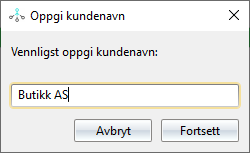
-
Enter the customer’s name.
-
Click Continue.
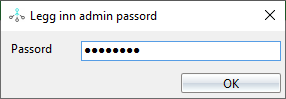
Enter the password you want to use for logging in to ZData Workflow. This will be the password required when you open ZData Workflow later.
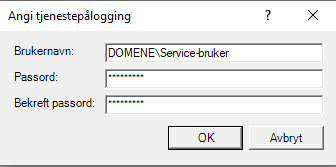
Service user setup
-
Enter the username and password for the service user.
-
Preferably use the same service user as other Visma services.
-
Do not use Local System.
-
The service user must also have access rights to the folders it will use for importing and storing files, and must have the rights to run the Workflow service on the server.
Important:
-
If you enter the wrong service user, the installer must be run again.
-
For server setup, the service user must be entered in the format
DOMAIN\username(e.g.DOMAIN\service). -
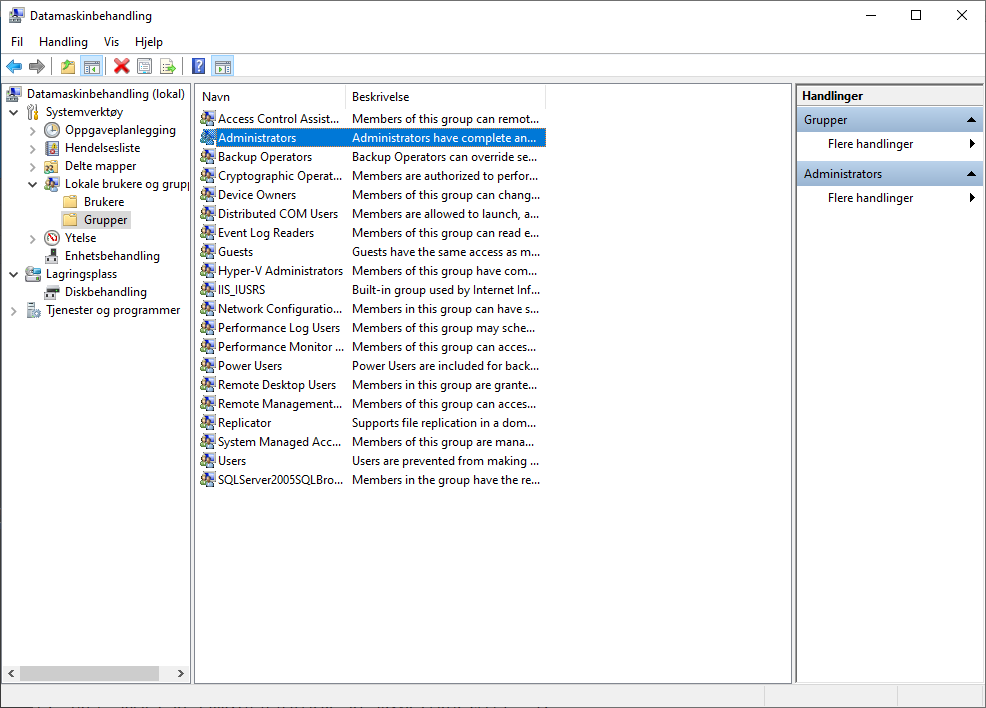
The service user also requires local administrator rights. This is done by adding it to the Administrators group under
Computer Management → (Start → Run → compmgmt.msc).
-
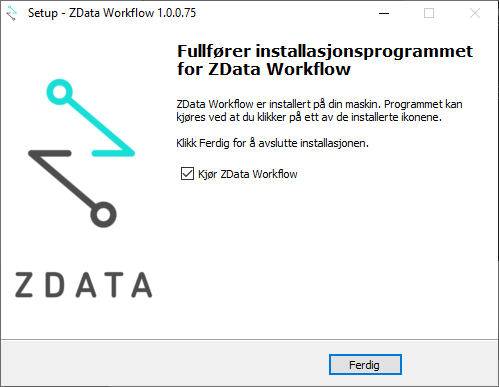
Click Finish.
The installation is now complete, and the setup for bank integration can begin.