

To start the reconciliation, right-click on the account you want to reconcile or click the "Reconcile" button.
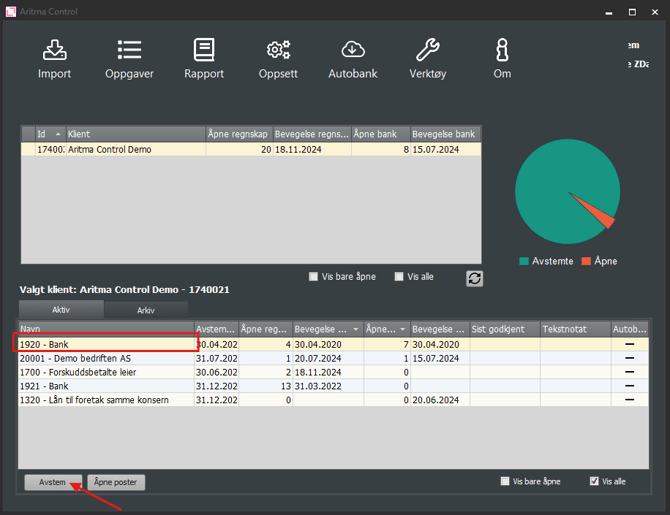
The program automatically reconciles items based on a set of built-in reconciliation rules. It is also possible to set up your own reconciliation rules to be used during reconciliation. See Setup of reconciliation rules.
After the automatic reconciliation has run, you will get an overview of the remaining open items that must be processed. A T-view will be displayed, where open items on the accounting side are shown on the left, and open items on the bank side are shown on the right.
Select items on both the accounting and bank side by clicking on them. If you want to select multiple items, hold down CTRL while selecting the next item. If you want to select many consecutive items, select the top item, then hold down SHIFT and click on the bottom item.
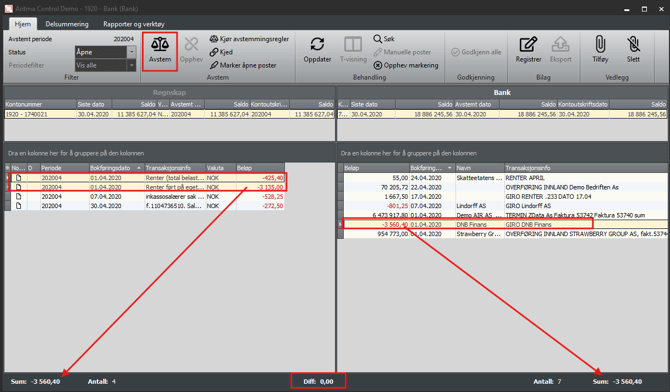
The program continuously calculates the marked entries. The difference is shown in the bottom middle of the display. Check that the difference between the selected postings is zero. Then press "Reconcile" or CTRL+A.
If you try to reconcile amounts that do not match, the program will propose recording a correction entry. This can, for example, be useful if there are small differences between what is posted in the accounts and what has been entered into the bank account.
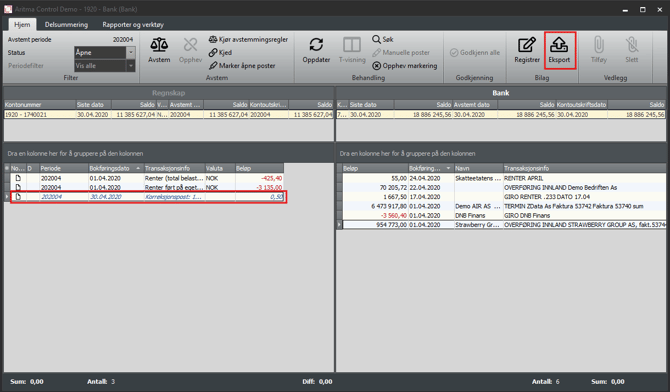
In the example below there is a difference of 0.50 kr:
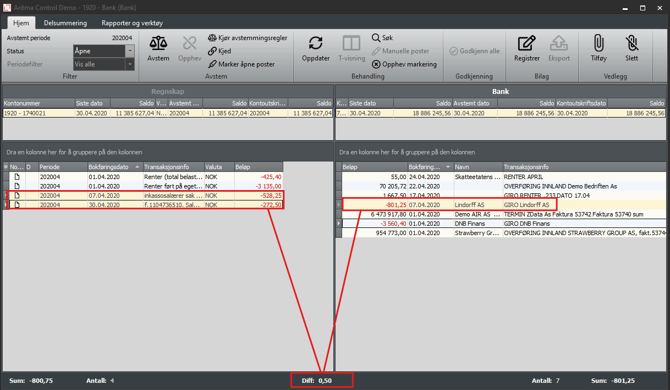
The program suggests registering a correction entry so that the difference becomes zero.
Fill in the fields on the voucher, and press "OK".
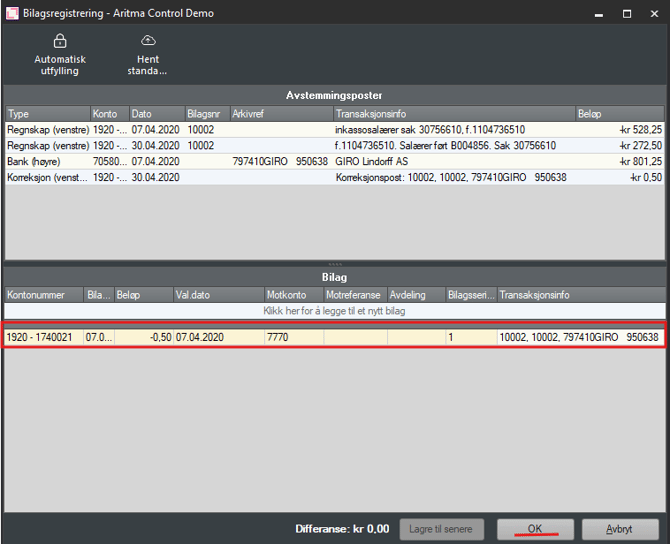
A correction entry is now posted on the accounting page, and the voucher can be exported to the ERP system by clicking Export.
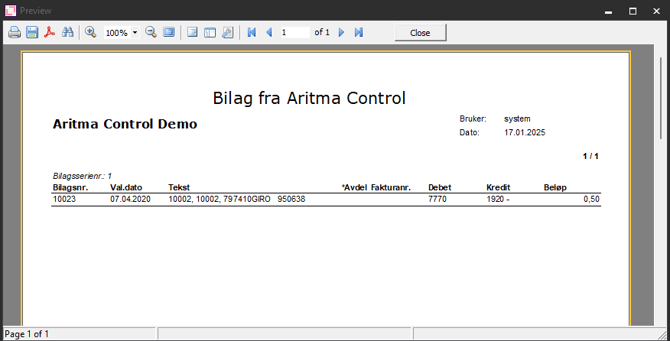
A file containing information about the voucher is generated, which you can print if desired.
If Control is integrated with the accounting system, there will now be a voucher ready to be updated. For versions that are not integrated, we can create a file that can be imported into the accounting system based on the template from the accounting system. Please contact Aritma for more information.