

1.
Go to pay.aritma.app and log in.
2.
Open “Dashboard” from the menu on the left.
3.
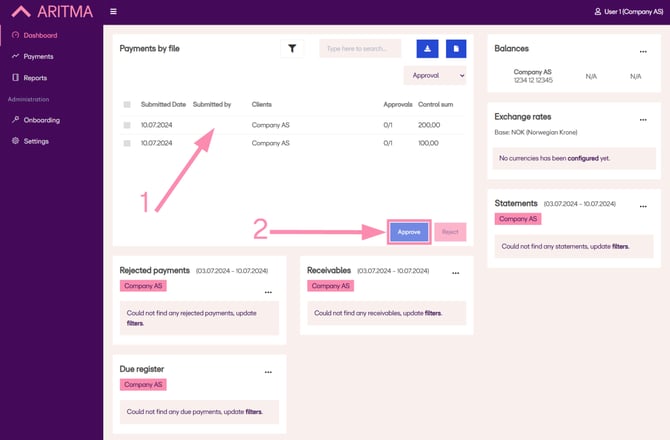
If you have submitted a payment from your accounting system, you will now see it under “Payments by file.”
-
You can either approve (Approve) or reject (Reject) payments.
-
To approve a payment, click on the payment.
-
To select multiple payments, check the box next to them (see related article).
-
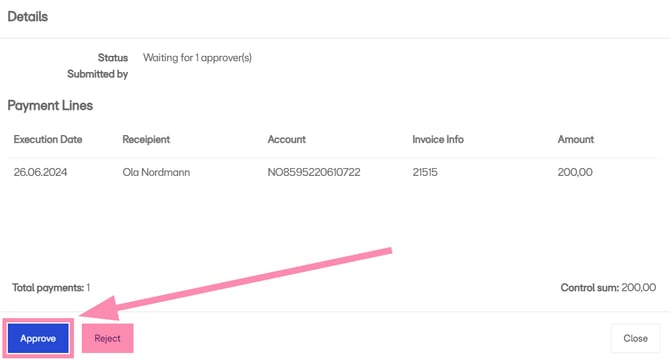
If you click directly on the payment, a pop-up window will appear. Verify that the payment is correct, then click “Approve.”
4.
Confirm the payment by using a code from your two-factor authentication app.
If you have not yet set this up, see the related article.
Note: If you did not confirm your identity with BankID when creating your user account, you must do so now. A guide is available [here].
5.
Return to “Dashboard.”
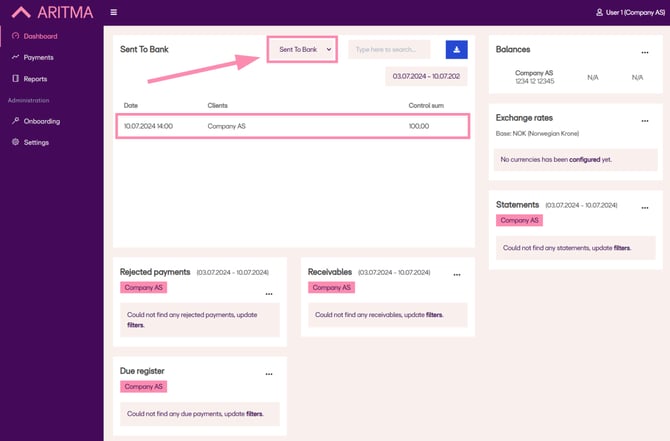
The payment will no longer appear under “Approval” because it has been sent to the bank.
In the field where the example shows “Sent to bank,” you will now see “Approval.”
Select “Sent to bank” to view payments already sent to the bank.
6.
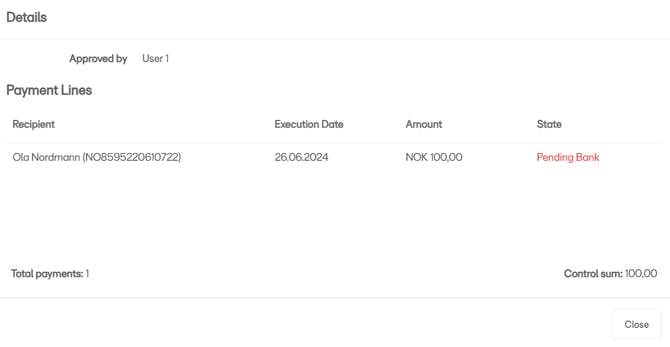
If you click on the payment, you will find additional information such as status.
Note: If the payment requires approval from more than one approver, continue with the next section of the related article.